Provision
How to Provision the Softphone
- Find the phone icon in the lower right-hand corner of the screen (by the clock.)
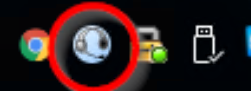
- Right click the icon to bring up the softphone’s menu, then click Provision at the top of the menu.
- Once the Provisioning Wizard opens, click Next.
- Next, open up the audio properties by clicking Audio Tuning Wizard. -- audio tuning wizard is basically disabled. we manage audio in the windows properties now
- Once the Audio Tuning Wizard opens, click Next.
- On the next screen, we must set the phone to use the headset. In the two drop downs, make sure the USB headset is selected for both the microphone and speakers. After that, click Next.
- skip this step now, this window is disabled
- skip this step now, this window is disabled
- Click on Finish to close the Audio Tuning Wizard and return to the Softphone Provisioning Wizard.
- Now that we are back to the Softphone Provisioning Wizard, click Next.
- The Wizard will now query the DHCP server. Wait about 30 seconds for this to finish.
- Be sure that “Configure Settings” is selected, and the Phone Provisioning Server is set to ims-i3-c1.rmg.local (this should be set by deafult). Once the proper server is inputted, click Next.
- On the next screen, make sure the 2nd option (I use a VPN…) is selected. In the two dropdowns that appear after selecting the 2nd option, make sure both items start with “10.253.”
- Click on Finish. The softphone is now provisioned.
