Windows 101 - Context Menus
Windows 101: Context Menus
In this lesson, we’ll learn about context menus, an important feature in Windows that provides quick actions depending on where you are or what you’ve selected.
What is a Context Menu?
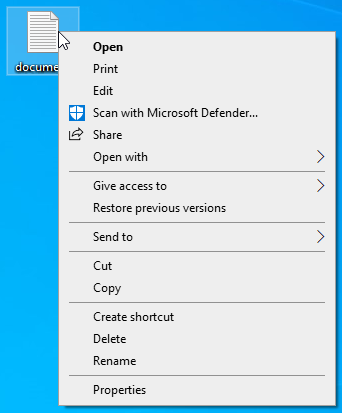
A context menu is a small menu that appears when you right-click on an item, such as a file, folder, or even the Desktop itself. The options you see depend on the item you right-clicked on. For example, if you right-click on a file, you might see options like Open, Rename, or Delete.

How to Open a Context Menu
To open a context menu, simply:
- Right-click on the item (file, folder, program icon, etc.) you want to interact with.
- A menu will pop up with a list of actions specific to that item.
These actions save time by giving you options directly related to the item you’ve selected.
Common Context Menu Options
Here are a few common options you’ll see in context menus:
- Open: Opens the selected file or folder.
- Cut: Moves the selected item to another location after you paste it.
- Copy: Creates a copy of the selected item that you can paste elsewhere.
- Delete: Sends the selected item to the Recycle Bin.
- Properties: Opens a window that shows details about the selected item, such as its size, location, and permissions.

Context Menus for Different Areas
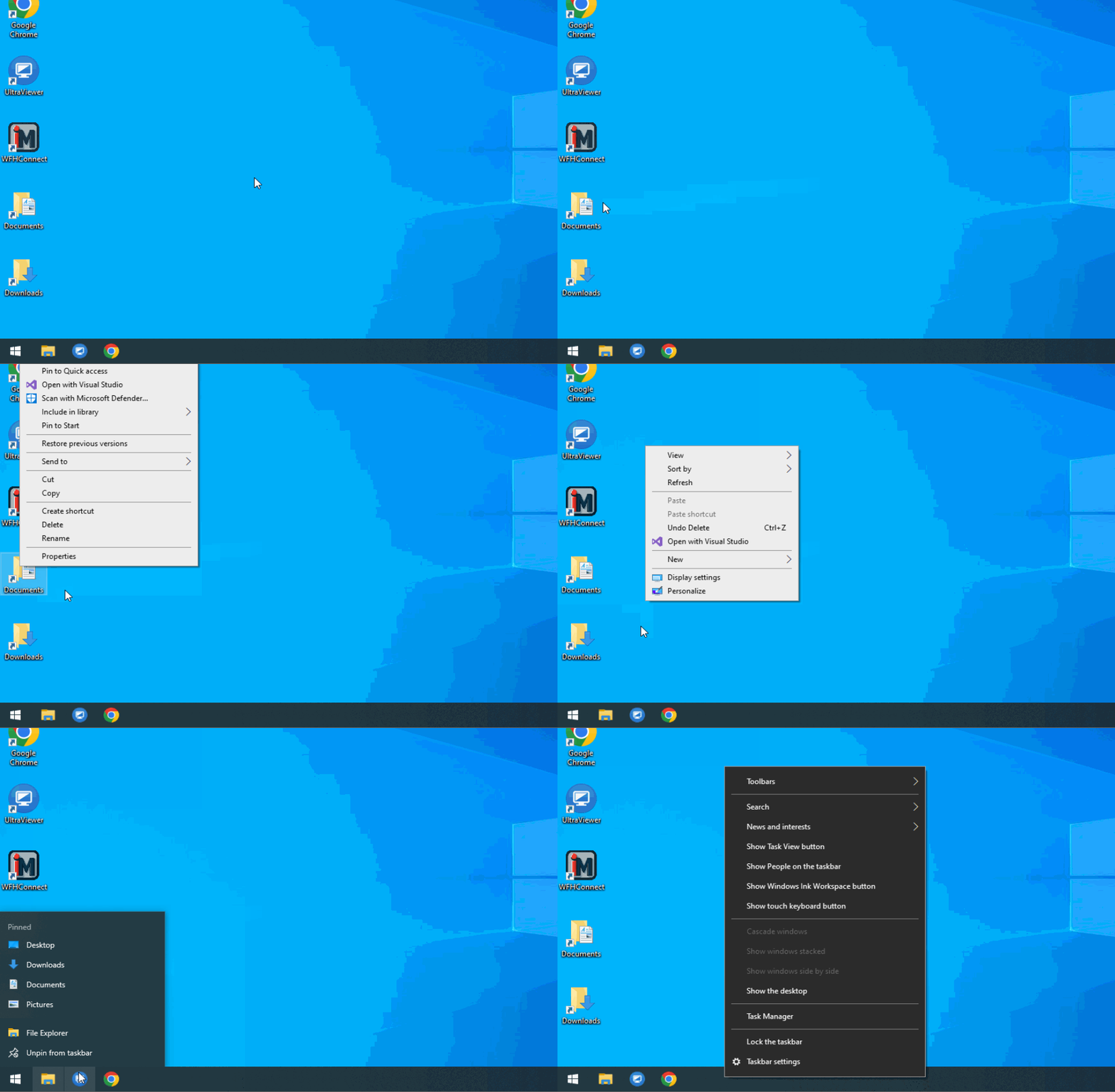
- Desktop: Right-clicking on the Desktop itself will show options like View, Sort By, and Refresh.
- File Explorer: Right-clicking on a file or folder in File Explorer brings up options like Copy, Rename, and Delete.
- Taskbar: Right-clicking on an open program in the Taskbar allows you to pin it, close it, or view other window management options.

Now that you know how to access and use context menus, you'll be able to save time by using the quick options they provide. This feature will be useful across various tasks in Windows. In the next lesson, we’ll move into File Management, which will help you organize and manage your files and folders efficiently.