Speed Test: Difference between revisions
Jump to navigation
Jump to search
No edit summary |
No edit summary |
||
| Line 1: | Line 1: | ||
# Go to: http://bellcanada.speedtestcustom.com/<br> <br> | # Go to: http://bellcanada.speedtestcustom.com/<br> <br> | ||
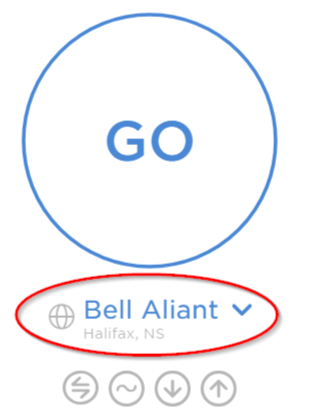
# Once the page loads, click the line under the GO button (circled in red below). <br> [[File:Speedtest location.png]]<br> <br> | # Once the page loads, click the line under the GO button (circled in red below). <br> [[File:Speedtest location.png]]<br> <br> | ||
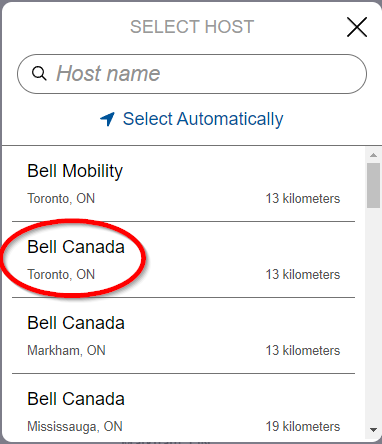
# In the box that pops up, click on “'''Bell Canada, | # In the box that pops up, click on “'''Bell Canada, Toronto, ON'''“. The list is long, if you don’t see it, you may need to scroll down. [[File:Speedtest Toronto.png|alt=Speedtest Toronto]]<br> | ||
# Click on the button that says “Go” in the middle of the screen.<br> [[File:Speedtest go.png]]<br> <br> | # Click on the button that says “Go” in the middle of the screen.<br> [[File:Speedtest go.png]]<br> <br> | ||
# The test will now run. It will take a few minutes to complete. Once it is done you should see results that look like this:<br> [[File:Speedtest results.png]]<br> <br> | # The test will now run. It will take a few minutes to complete. Once it is done you should see results that look like this:<br> [[File:Speedtest results.png]]<br> <br> | ||
# Click the “Copy Link” button (circled in red on the picture above).<br> <br> <br> | # Click the “Copy Link” button (circled in red on the picture above).<br> <br> <br> | ||
# Create a new email and paste the link in the body of the email (to paste, click in the body of the email and hit CTRL and V at the same time). Send the email to: [mailto:speedtestresults@imkgp.com speedtestresults@imkgp.com].<br><br> | # Create a new email and paste the link in the body of the email (to paste, click in the body of the email and hit CTRL and V at the same time). Send the email to: [mailto:speedtestresults@imkgp.com speedtestresults@imkgp.com].<br><br> | ||
Revision as of 15:30, 17 September 2024
- Go to: http://bellcanada.speedtestcustom.com/
- Once the page loads, click the line under the GO button (circled in red below).
- In the box that pops up, click on “Bell Canada, Toronto, ON“. The list is long, if you don’t see it, you may need to scroll down.
- Click on the button that says “Go” in the middle of the screen.

- The test will now run. It will take a few minutes to complete. Once it is done you should see results that look like this:
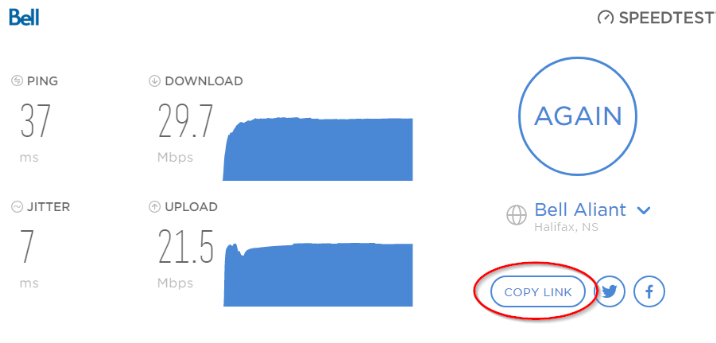
- Click the “Copy Link” button (circled in red on the picture above).
- Create a new email and paste the link in the body of the email (to paste, click in the body of the email and hit CTRL and V at the same time). Send the email to: speedtestresults@imkgp.com.


