Restart Apps: Difference between revisions
Jump to navigation
Jump to search
(fixed whitespace) |
(Finished adding text.) |
||
| Line 5: | Line 5: | ||
# Right click the icon to bring up the softphone’s menu, then click '''Exit''' at the bottom of the menu.<br> <br>[[File:Restart2.png]]<br> | # Right click the icon to bring up the softphone’s menu, then click '''Exit''' at the bottom of the menu.<br> <br>[[File:Restart2.png]]<br> | ||
#Find the CheckPoint icon in the lower right-hand corner of the screen (by the clock.) <br> <br>[[File:Restart3.png]]<br> | #Find the CheckPoint icon in the lower right-hand corner of the screen (by the clock.) <br> <br>[[File:Restart3.png]]<br> | ||
# | # Right click the icon to bring up CheckPoint's menu, then click '''Shutdown Client '''at the bottom of the menu.<br> <br>[[File:Restart4.png]]<br> | ||
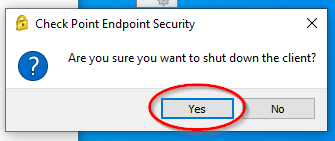
# | #Click '''Yes''' on the confirmation window that shows up.<br> <br>[[File:Restart5.png]]<br> | ||
# | #All the applications are shut down. Login as you normally would.<br> | ||
Revision as of 18:44, 11 April 2024
Restart Applications
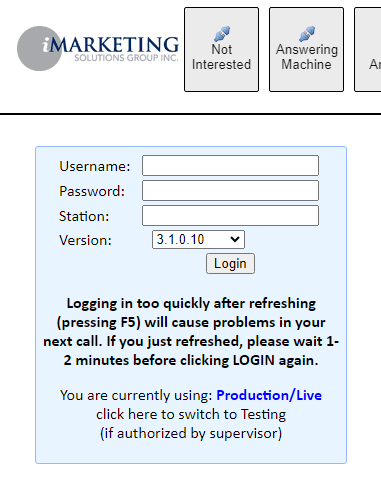
- Log the user out of scripter (don't skip this step, it can cause issues trying to log back in). The fastest way to get logged out is to hit F5.
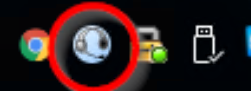
- Find the phone icon in the lower right-hand corner of the screen (by the clock.)
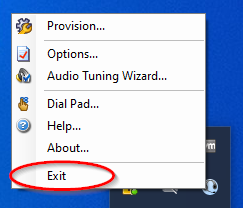
- Right click the icon to bring up the softphone’s menu, then click Exit at the bottom of the menu.
- Find the CheckPoint icon in the lower right-hand corner of the screen (by the clock.)

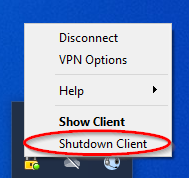
- Right click the icon to bring up CheckPoint's menu, then click Shutdown Client at the bottom of the menu.
- Click Yes on the confirmation window that shows up.
- All the applications are shut down. Login as you normally would.


