Check Windows Volume: Difference between revisions
Jump to navigation
Jump to search
(added steps and images) |
No edit summary |
||
| Line 1: | Line 1: | ||
= Check Windows Volume = | = Check Windows Volume = | ||
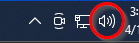
# Find the speaker (volume) icon in the lower right-hand corner of the screen (by the clock.) | # Find the speaker (volume) icon in the lower right-hand corner of the screen (by the clock.)<br> <br>[[File:Volume1.png]]<br> | ||
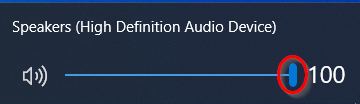
# Grab the slider with the mouse button, and drag it all the way to the right. | # Grab the slider with the mouse button, and drag it all the way to the right. Alternatively, you can place the mouse over the slider and roll the mouse wheel up. Most of our systems need the volume at 100 on the headsets, but if someone is using a personal headset, this level can be much lower. <br> <br>[[File:Volume2.png]]<br> | ||
Revision as of 19:22, 10 April 2024
Check Windows Volume
- Find the speaker (volume) icon in the lower right-hand corner of the screen (by the clock.)
- Grab the slider with the mouse button, and drag it all the way to the right. Alternatively, you can place the mouse over the slider and roll the mouse wheel up. Most of our systems need the volume at 100 on the headsets, but if someone is using a personal headset, this level can be much lower.