Help Desk 2FA Setup: Difference between revisions
Jump to navigation
Jump to search
No edit summary |
No edit summary |
||
| Line 1: | Line 1: | ||
# Download the the free '''WatchGuard AuthPoint''' application. | # Download the the free '''WatchGuard AuthPoint''' application. | ||
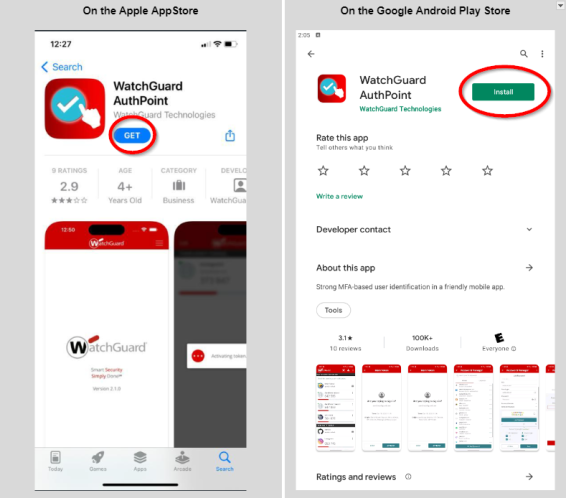
## Go to the '''Google Play Store''' or the '''Apple App Store''' and search for '''Watchguard AuthPoint'''. | ## Go to the '''Google Play Store''' or the '''Apple App Store''' and search for '''Watchguard AuthPoint'''. | ||
## If you have an Apple phone, click the blue ''GET'' button and wait for the app to install. | ## If you have an Apple phone, click the blue ''GET'' button and wait for the app to install. | ||
## If you have an Android phone, click the green ''Install'' button and wait for the app to install. [[File:Help desk 2fa setup app store.png|566x566px]] | ## If you have an Android phone, click the green ''Install'' button and wait for the app to install. <br> <br>[[File:Help desk 2fa setup app store.png|566x566px]]<br> | ||
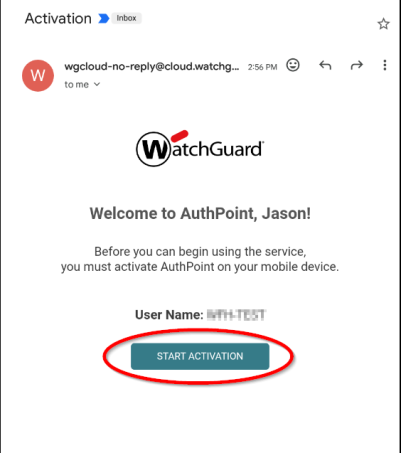
# Find the email from '''WatchGuard''', open it and click on the '''Start Activation''' button. [[File:Help desk 2fa setup watchguard email.png|453x453px]] | # Find the email from '''WatchGuard''', open it and click on the '''Start Activation''' button.<br> <br>[[File:Help desk 2fa setup watchguard email.png|453x453px]]<br> | ||
# | ## | ||
Revision as of 20:26, 5 July 2024
- Download the the free WatchGuard AuthPoint application.
- Go to the Google Play Store or the Apple App Store and search for Watchguard AuthPoint.
- If you have an Apple phone, click the blue GET button and wait for the app to install.
- If you have an Android phone, click the green Install button and wait for the app to install.
- Find the email from WatchGuard, open it and click on the Start Activation button.