Help Desk 2FA Move Token: Difference between revisions
Jump to navigation
Jump to search
No edit summary |
No edit summary |
||
| Line 1: | Line 1: | ||
# Open WatchGuard AuthPoint on your mobile device, and click the menu icon (the 3 dots circled in green) next to the token you want to move. [[File:Watchguard move token menu button.png]] | |||
# Push the Migrate Token option on the menu. [[File:Help desk 2fa move token menu.png]] | # Open WatchGuard AuthPoint on your mobile device, and click the menu icon (the 3 dots circled in green) next to the token you want to move. <br> <br>[[File:Watchguard move token menu button.png]]<br> | ||
# Press the Yes button. [[File:Help desk 2fa move token yes button.png]] | # Push the Migrate Token option on the menu.<br> <br> [[File:Help desk 2fa move token menu.png]]<br> | ||
# The token will be deleted and an email will be sent to setup the token on a new device. | # Press the Yes button.<br> <br>[[File:Help desk 2fa move token yes button.png]]<br> | ||
# The token will be deleted and an email will be sent to setup the token on a new device. <br><br>[[File:Help desk 2fa move token done.png]] | |||
Revision as of 19:13, 5 July 2024
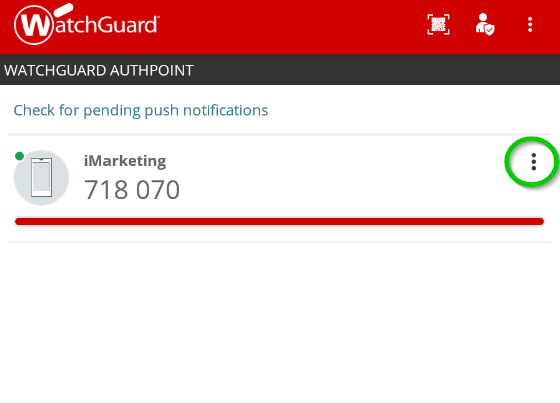
- Open WatchGuard AuthPoint on your mobile device, and click the menu icon (the 3 dots circled in green) next to the token you want to move.
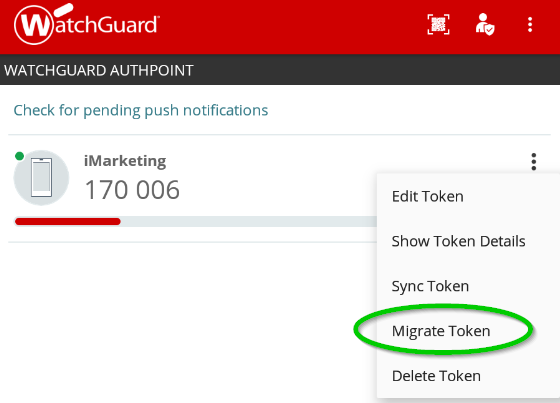
- Push the Migrate Token option on the menu.
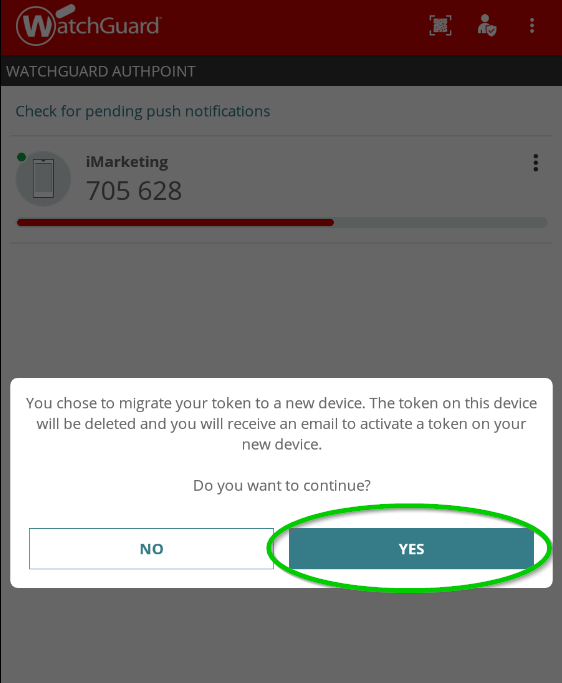
- Press the Yes button.
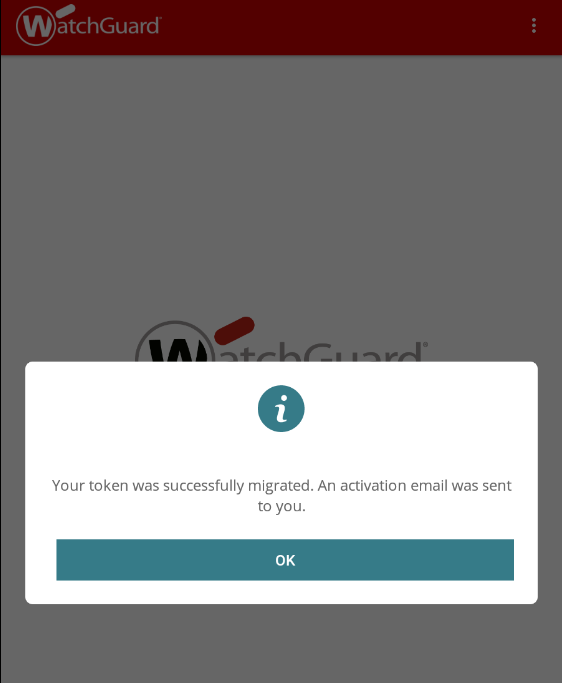
- The token will be deleted and an email will be sent to setup the token on a new device.