Google Docs Edit Docs: Difference between revisions
No edit summary |
No edit summary |
||
| Line 24: | Line 24: | ||
* '''Find the document you want to edit using various methods:''' | * '''Find the document you want to edit using various methods:''' | ||
** '''Search for the document:''' | ** '''Search for the document:''' | ||
*** Use the search bar at the top of Google Drive. Type keywords related to the document you need, such as the file name or contents, and press 'Enter' to search.<br> <br> | *** Use the search bar at the top of Google Drive. Type keywords related to the document you need, such as the file name or contents, and press 'Enter' to search.<br> <br>[[File:Drive search.png|672x672px]]<br> <br> | ||
** '''Browse through your folders:''' | ** '''Browse through your folders:''' | ||
*** If you know the folder where your document is stored, navigate through your folders by clicking on them until you find the document.<br> <br> <br> <br> | *** If you know the folder where your document is stored, navigate through your folders by clicking on them until you find the document.<br> <br> <br> <br> | ||
Revision as of 00:16, 23 May 2024
Edit Documents in Google Docs
What is Google Docs?
Google Docs is a web-based word processor offered by Google within its Google Drive service. It allows users to create, edit, and share documents online while collaborating with others in real-time.
Steps to Open and Edit Documents in Google Docs
Step 1: Navigate to Google Drive
- Open your Chrome browser.
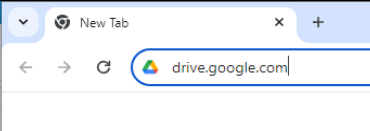
- Click on the address bar at the top of the page. Type www.drive.google.com and press the 'Enter' key on your keyboard. This will take you to the Google Drive login page.
- NOTE: Most users are logged into the Chrome browser, so the login will be skipped. If the user is already logged in, skip ahead to step 3.

Step 2: Log into Google Drive
- If you are not already logged in,
- You will see fields to enter your email and password. Type your email address in the first field and click 'Next'. Then, type your password in the second field and click 'Next' again to access your Google Drive.
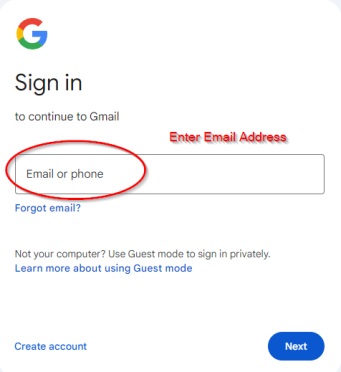
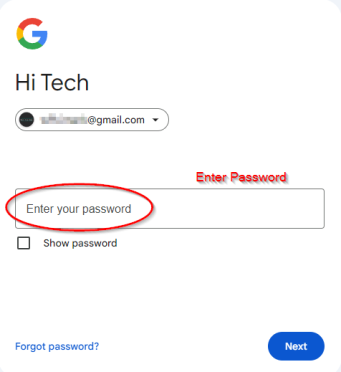
- You will see fields to enter your email and password. Type your email address in the first field and click 'Next'. Then, type your password in the second field and click 'Next' again to access your Google Drive.


Step 3: Locate the Document
- Find the document you want to edit using various methods:
- Search for the document:
- Use the search bar at the top of Google Drive. Type keywords related to the document you need, such as the file name or contents, and press 'Enter' to search.
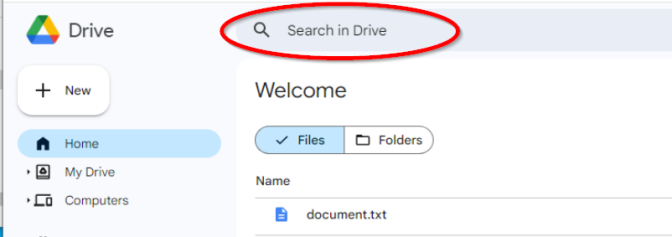
- Use the search bar at the top of Google Drive. Type keywords related to the document you need, such as the file name or contents, and press 'Enter' to search.
- Browse through your folders:
- If you know the folder where your document is stored, navigate through your folders by clicking on them until you find the document.
- If you know the folder where your document is stored, navigate through your folders by clicking on them until you find the document.
- Sort your files:
- You can sort your files by 'Last modified,' 'Name,' or 'Last opened by me' by clicking on the appropriate sorting option at the top of your file list. This can help you quickly find files based on these criteria.
- You can sort your files by 'Last modified,' 'Name,' or 'Last opened by me' by clicking on the appropriate sorting option at the top of your file list. This can help you quickly find files based on these criteria.
- Search for the document:

Step 4: Open the Document
- Open your document based on its format:
- For Google Docs files:
- Simply double-click on the Google Docs file. It will automatically open in Google Docs for editing.
- Simply double-click on the Google Docs file. It will automatically open in Google Docs for editing.
- For other formats (e.g., Microsoft Word):
- If the file is not a native Google Docs file, like a Microsoft Word document, you'll see an option to open it with Google Docs when you double-click it. Click on “Open with Google Docs” at the top of the preview window. This will convert the document to Google Docs format for editing.
- If the file is not a native Google Docs file, like a Microsoft Word document, you'll see an option to open it with Google Docs when you double-click it. Click on “Open with Google Docs” at the top of the preview window. This will convert the document to Google Docs format for editing.
- For Google Docs files:
Step 5: Edit Your Document
- Begin making changes.
- Once your document is open in Google Docs, you can start editing immediately. Click anywhere in the document to begin typing, delete text, add formatting, or insert images and tables as needed.
- Once your document is open in Google Docs, you can start editing immediately. Click anywhere in the document to begin typing, delete text, add formatting, or insert images and tables as needed.
Step 6: Automatic Saving
- All changes are saved automatically.
- As you edit the document, all changes are saved automatically by Google Docs. You can see the saving status at the top of the document next to the document title ("All changes saved in Drive"). This feature ensures that your work is not lost and is accessible from any device where you can log into your Google Drive.
- As you edit the document, all changes are saved automatically by Google Docs. You can see the saving status at the top of the document next to the document title ("All changes saved in Drive"). This feature ensures that your work is not lost and is accessible from any device where you can log into your Google Drive.
Why Use Google Docs for Editing? Google Docs provides a flexible and collaborative environment for document editing. Its integration with Google Drive allows for easy file management and sharing, while the real-time collaboration feature lets multiple users work on the same document simultaneously from different locations. The automatic saving feature ensures that every change is immediately preserved, making it a reliable tool for personal and professional use.