Windows 101 - Managing Windows: Difference between revisions
No edit summary |
No edit summary |
||
| Line 19: | Line 19: | ||
# Click and hold the '''left mouse button''', then drag the window to the position you want. | # Click and hold the '''left mouse button''', then drag the window to the position you want. | ||
# Release the mouse button to drop the window in place. | # Release the mouse button to drop the window in place. | ||
This is useful for rearranging your workspace, especially when working with multiple windows.<br> | |||
[[File:Windows 101 - Managing Windows - Moving Windows.gif|alt=Moving a windows by clicking on the title bar.|none|thumb|885x885px|Moving a windows by clicking on the title bar.]]<p> </p> | |||
[[File:Windows 101 - Managing Windows - Moving Windows.gif|alt=Moving a windows by clicking on the title bar.|none|thumb|885x885px|Moving a windows by clicking on the title bar.]] | |||
==== Resizing a Window ==== | ==== Resizing a Window ==== | ||
To make a window larger or smaller: | To make a window larger or smaller: | ||
| Line 28: | Line 27: | ||
# Move your mouse to the edge or corner of the window until the cursor changes to a double-sided arrow. | # Move your mouse to the edge or corner of the window until the cursor changes to a double-sided arrow. | ||
# Click and hold the '''left mouse button''', then drag the edge or corner to resize the window. | # Click and hold the '''left mouse button''', then drag the edge or corner to resize the window. | ||
# Release the mouse button when the window is the desired size. [[File:Windows 101 - Managing Windows - Resizing.gif|alt=Resizing a window by dragging the corner.|none|thumb|843x843px|Resizing a window by dragging the corner.]] | # Release the mouse button when the window is the desired size.<br><p> </p>[[File:Windows 101 - Managing Windows - Resizing.gif|alt=Resizing a window by dragging the corner.|none|thumb|843x843px|Resizing a window by dragging the corner.]]<p> </p> | ||
==== Minimizing and Maximizing Windows ==== | ==== Minimizing and Maximizing Windows ==== | ||
In the title bar, you’ll find three buttons on the right side: | In the title bar, you’ll find three buttons on the right side: | ||
| Line 34: | Line 34: | ||
* '''Minimize button''': Shrinks the window to the Taskbar. You can bring it back by clicking its icon on the Taskbar. | * '''Minimize button''': Shrinks the window to the Taskbar. You can bring it back by clicking its icon on the Taskbar. | ||
* '''Maximize button''': Expands the window to fill the entire screen. Clicking it again will restore the window to its previous size. | * '''Maximize button''': Expands the window to fill the entire screen. Clicking it again will restore the window to its previous size. | ||
* '''Close button''': Closes the window and the program or file it contains. | * '''Close button''': Closes the window and the program or file it contains.<br> <br> | ||
[[File:Windows 101 - Managing Windows - Control Buttons.png|alt=Minimize, Maximize and Close|none|frame|Minimize, Maximize and Close]] | [[File:Windows 101 - Managing Windows - Control Buttons.png|alt=Minimize, Maximize and Close|none|frame|Minimize, Maximize and Close]] | ||
| Line 43: | Line 43: | ||
* '''Three windows''': Snap two windows to the top and bottom of one side of the screen, then snap a third window to fill the opposite side. | * '''Three windows''': Snap two windows to the top and bottom of one side of the screen, then snap a third window to fill the opposite side. | ||
* '''Four windows''': Drag a window to any of the four corners of the screen, and it will snap to fill a quarter of the screen. You can snap up to four windows this way. | * '''Four windows''': Drag a window to any of the four corners of the screen, and it will snap to fill a quarter of the screen. You can snap up to four windows this way. | ||
This is useful when you need to work on multiple programs simultaneously, such as comparing documents or viewing different applications at once.<br> | |||
[[File:Windows 101 - Managing Windows - Snapping.gif|alt=Snapping two windows.|none|thumb|942x942px|Snapping two windows.]]<p> </p> | |||
[[File:Windows 101 - Managing Windows - Snapping.gif|alt=Snapping two windows.|none|thumb|942x942px|Snapping two windows.]] | |||
---- | ---- | ||
Now that you know how to manage windows, you’ll be able to keep your workspace tidy and efficient, even when juggling multiple programs. In the next lesson, we’ll explore how to navigate and use the '''Start Menu''' to access your programs and settings.<br> | Now that you know how to manage windows, you’ll be able to keep your workspace tidy and efficient, even when juggling multiple programs. In the next lesson, we’ll explore how to navigate and use the '''Start Menu''' to access your programs and settings.<br> | ||
Revision as of 19:26, 11 September 2024
Windows 101: Managing Windows
In this lesson, we’ll cover how to manage open windows on your computer. Whether you’re working with one or multiple programs, knowing how to move, resize, minimize, and close windows will help you stay organized and productive.
What Are Windows?
When you open a program, document, or folder, it appears in its own window on the Desktop. These windows can be moved, resized, minimized, or closed as needed, allowing you to view and work on multiple tasks simultaneously.
The Title Bar
At the very top of every window, you’ll find the title bar. This bar displays the name of the program or file you’re working on. It also serves as a handle you can use to move the window around your screen. You’ll find the minimize, maximize, and close buttons on the right-hand side of the title bar.

Moving a Window
Once you’ve located the title bar, here’s how to move a window:
- Move your mouse cursor over the title bar.
- Click and hold the left mouse button, then drag the window to the position you want.
- Release the mouse button to drop the window in place.
This is useful for rearranging your workspace, especially when working with multiple windows.

Resizing a Window
To make a window larger or smaller:
- Move your mouse to the edge or corner of the window until the cursor changes to a double-sided arrow.
- Click and hold the left mouse button, then drag the edge or corner to resize the window.
- Release the mouse button when the window is the desired size.
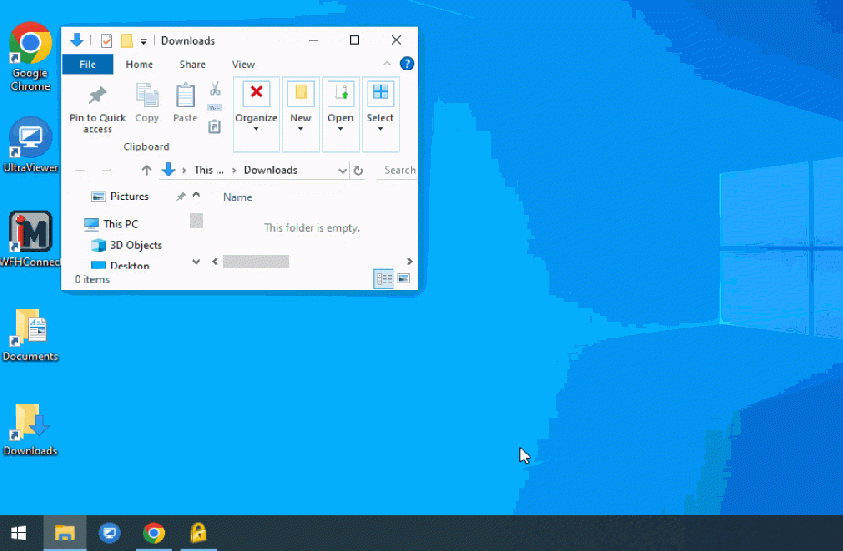
Resizing a window by dragging the corner.

Minimizing and Maximizing Windows
In the title bar, you’ll find three buttons on the right side:
- Minimize button: Shrinks the window to the Taskbar. You can bring it back by clicking its icon on the Taskbar.
- Maximize button: Expands the window to fill the entire screen. Clicking it again will restore the window to its previous size.
- Close button: Closes the window and the program or file it contains.

Snap (Tiling) Windows
Windows has a feature called Snap, which allows you to quickly arrange windows on your screen.
- Two windows: Drag a window to the left or right edge of the screen, and it will snap to fill half of the screen. You can do the same with another window on the opposite side.
- Three windows: Snap two windows to the top and bottom of one side of the screen, then snap a third window to fill the opposite side.
- Four windows: Drag a window to any of the four corners of the screen, and it will snap to fill a quarter of the screen. You can snap up to four windows this way.
This is useful when you need to work on multiple programs simultaneously, such as comparing documents or viewing different applications at once.

Now that you know how to manage windows, you’ll be able to keep your workspace tidy and efficient, even when juggling multiple programs. In the next lesson, we’ll explore how to navigate and use the Start Menu to access your programs and settings.