Windows 101 - The Interface: Difference between revisions
No edit summary |
No edit summary |
||
| Line 23: | Line 23: | ||
<gallery mode="packed" heights="200px"> | <gallery mode="packed" heights="200px"> | ||
File:Windows 101 - Interface - Taskbar.png|The Windows 10 Desktop | File:Windows 101 - Interface - Taskbar.png|The Windows 10 Desktop | ||
File:Windows 101 - Interface - | File:Windows 101 - Interface - Taskbar Areas.png|The Desktop Icons | ||
</gallery> | </gallery> | ||
| | ||
Revision as of 19:47, 10 September 2024
Windows 101: The Interface
Welcome to Windows 101! In this lesson, we’ll introduce the main components of the Windows interface: the Desktop, Taskbar, Start Menu, and System Tray. By understanding these key areas, you’ll have a clear idea of how your computer workspace is organized and what each section is used for.
As you explore, you’ll notice that each section comes with a picture to help illustrate the information. If the picture appears small, you can click on it to view a larger version.
1. The Desktop
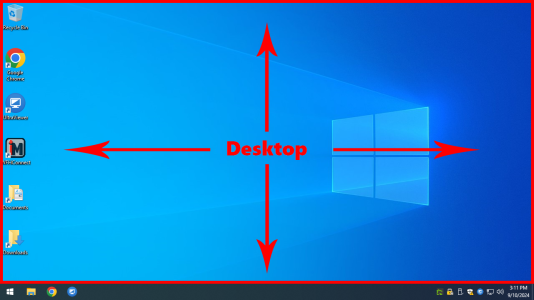
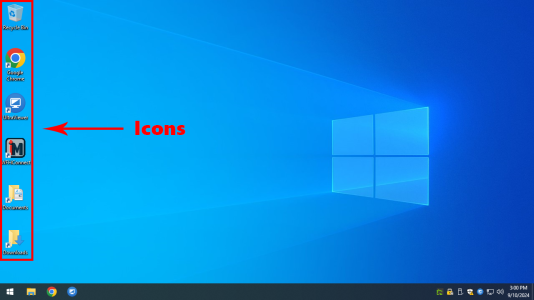
The Desktop is your computer’s main workspace. The icons you see are shortcuts to files, folders, and applications. These shortcuts give you quick access to important tools without needing to search through your computer.
When opening items on the Desktop, you'll need to double-click them. Double-clicking means pressing the left mouse button twice in quick succession. It’s different from a single click, which you’ll use in most other places in Windows.
The Desktop is also a place to keep important files and frequently used applications, making it a central part of your workflow.
-
The Windows 10 Desktop
-
The Desktop Icons

2. The Taskbar
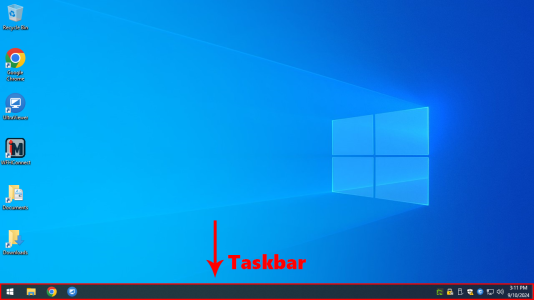
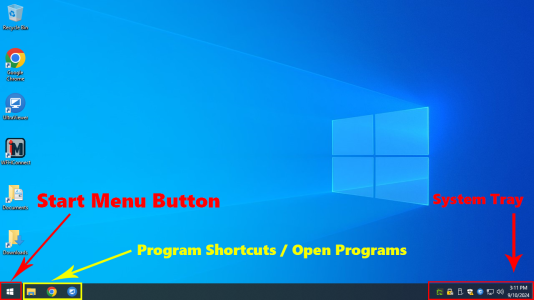
At the bottom of your screen, you’ll see the Taskbar. This area is your command center for open applications and frequently used programs. Here’s how it’s laid out:
- On the left is the Start Menu button, which opens a menu with all your installed programs.
- The middle section shows icons for open windows. These icons represent programs or files you have open. If you minimize something, it will shrink down to the Taskbar for easy access later.
- On the far right, you’ll find the System Tray, which we’ll discuss next.
The Taskbar helps you manage and switch between tasks quickly and easily.
-
The Windows 10 Desktop
-
The Desktop Icons


3. The Start Menu

The Start Menu is your portal to everything on your computer. It contains all your programs, system settings, and files, all in one place. Clicking on the Start Menu button opens a list of your installed applications, with options for searching, managing your computer’s settings, or shutting down.
You can also search by simply typing in the Start Menu after opening it, which allows you to find files or programs without having to navigate through the full menu.
[picture] showing the Start Menu open with the search bar in focus
4. The System Tray
On the far right of the Taskbar is the System Tray, where you can see icons representing background tasks and system processes. These icons show things like your internet status and volume level. The System Tray helps you keep track of essential functions without needing to open specific programs.
[gif] showing the System Tray with internet and volume icons highlighted