Speed Test: Difference between revisions
Jump to navigation
Jump to search
No edit summary |
No edit summary |
||
| (6 intermediate revisions by the same user not shown) | |||
| Line 1: | Line 1: | ||
# Go to: | # Go to: https://support.bell.ca/internet/internet-speed-test<br> <br> | ||
# Once the page loads, click the line under the GO button (circled in red below). | # Once the page loads, click the line under the GO button (circled in red below). <br> <br>[[File:Speedtest location.png]]<br> <br> | ||
# In the box that pops up, click on | # In the box that pops up, click on “'''Bell Canada, Toronto, ON'''“. The list is long, if you don’t see it, you may need to scroll down. <br> <br>[[File:Speedtest Toronto.png|alt=Speedtest Toronto]]<br> | ||
# Click on the button that says “Go” in the middle of the screen. | # Click on the button that says “Go” in the middle of the screen.<br> <br>[[File:Speedtest go.png]]<br> <br> | ||
# The test will now run. | # The test will now run. It will take a few minutes to complete. Once it is done you should see results that look like this:<br> <br>[[File:Speedtest Results.png|alt=Speedtest Results|740x740px]]<br> | ||
# | # Please send us the results by either taking a screenshot, a photo, copying and pasting, or typing them out. Send the email to: [mailto:speedtestresults@imkgp.com speedtestresults@imkgp.com].<br><br> | ||
Latest revision as of 18:17, 6 May 2025
- Go to: https://support.bell.ca/internet/internet-speed-test
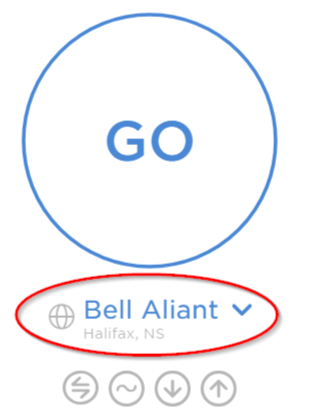
- Once the page loads, click the line under the GO button (circled in red below).
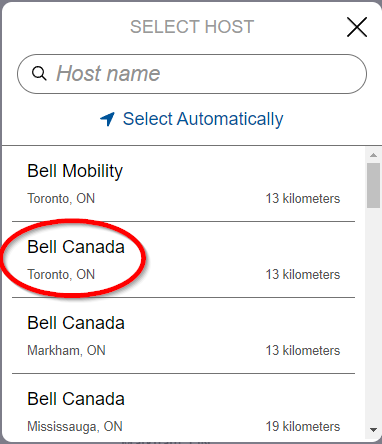
- In the box that pops up, click on “Bell Canada, Toronto, ON“. The list is long, if you don’t see it, you may need to scroll down.
- Click on the button that says “Go” in the middle of the screen.

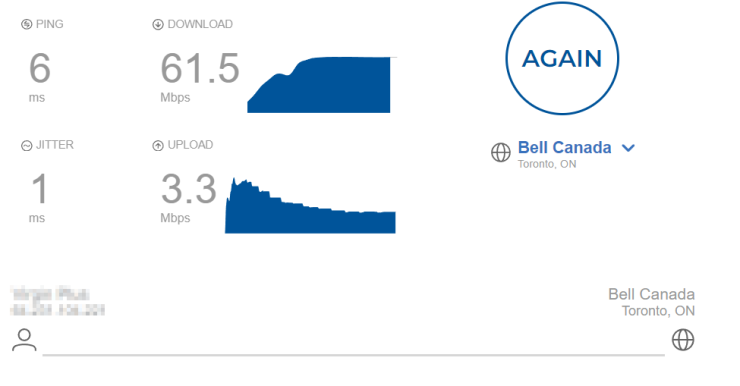
- The test will now run. It will take a few minutes to complete. Once it is done you should see results that look like this:
- Please send us the results by either taking a screenshot, a photo, copying and pasting, or typing them out. Send the email to: speedtestresults@imkgp.com.


