Copy and Paste: Difference between revisions
No edit summary |
No edit summary |
||
| (11 intermediate revisions by the same user not shown) | |||
| Line 11: | Line 11: | ||
* '''Using the mouse:''' | * '''Using the mouse:''' | ||
** For text: Click at the beginning of the text you want to copy, hold down the left mouse button, and drag to select the entire text. Release the button once everything you want to copy is highlighted. <br> <br>[[File:Selecting text.gif]]<br> | ** For text: Click at the beginning of the text you want to copy, hold down the left mouse button, and drag to select the entire text. Release the button once everything you want to copy is highlighted. <br> <br>[[File:Selecting text.gif]]<br> | ||
** For pictures: Move your cursor over the picture, right-click, and select 'Copy Picture' if available. This option directly copies the image. | ** For pictures: Move your cursor over the picture, right-click, and select 'Copy Picture' if available. This option directly copies the image. <br> <br>[[File:Right click copy image.png|529x529px]] <br> | ||
| |||
'''Step 2: Copy the Selection''' | '''Step 2: Copy the Selection''' | ||
* '''Using the mouse:''' | * '''Using the mouse:''' | ||
** Right-click on the selected text or image. A context menu will appear. Click on 'Copy' from this menu. | ** Right-click on the selected text or image. A context menu will appear. Click on 'Copy' from this menu. <br> <br>[[File:Image copy text context menu.png]]<br> | ||
* '''Using the keyboard:''' | * '''Using the keyboard:''' | ||
** Press <code>Ctrl + C</code> on your keyboard to copy the selected text or image to your clipboard. | ** Press <code>Ctrl + C</code> on your keyboard to copy the selected text or image to your clipboard. | ||
| Line 26: | Line 24: | ||
* '''Navigate to where you want to paste:''' | * '''Navigate to where you want to paste:''' | ||
** Open the document or field where you want to paste the copied content. Click in the spot where you want the content to appear. | ** Open the document or field where you want to paste the copied content. Click in the spot where you want the content to appear. | ||
'''Step 4: Paste the Content''' | '''Step 4: Paste the Content''' | ||
* '''Using the mouse:''' | * '''Using the mouse:''' | ||
** Right-click in the destination area. A context menu will appear. Click on 'Paste' from this menu. | ** Right-click in the destination area. A context menu will appear. Click on 'Paste' from this menu. <br> <br>[[File:Image paste menu.png]] <br> | ||
* '''Using the keyboard:''' | * '''Using the keyboard:''' | ||
** Press <code>Ctrl + V</code> on your keyboard. The text or picture will be inserted into the location you chose. | ** Press <code>Ctrl + V</code> on your keyboard. The text or picture will be inserted into the location you chose. | ||
| Line 44: | Line 42: | ||
* '''Google Docs:''' Collaborate effectively by pasting content into shared documents where multiple users can view and edit simultaneously. | * '''Google Docs:''' Collaborate effectively by pasting content into shared documents where multiple users can view and edit simultaneously. | ||
* '''Microsoft Word:''' Insert text or images into documents for reports, plans, or any other formal documentation. | * '''Microsoft Word:''' Insert text or images into documents for reports, plans, or any other formal documentation. | ||
| | ||
'''Why Use Copy and Paste?''' | '''Why Use Copy and Paste?''' | ||
The ability to copy and paste text and images is essential for avoiding the tedious and error-prone process of retyping. It ensures data accuracy and saves a considerable amount of time, especially when handling detailed or | The ability to copy and paste text and images is essential for avoiding the tedious and error-prone process of retyping. It ensures data accuracy and saves a considerable amount of time, especially when handling detailed or large amounts of content. For images, right-clicking and selecting "Copy Picture" simplifies duplicating visuals without having to save and re-upload files, streamlining tasks such as document creation and presentation preparation. | ||
| |||
| |||
| |||
''If any information is incorrect or out-of-date, please notify the Technical Support team at [mailto:workfromhome@imkgp.com workfromhome@imkgp.com].'' | |||
Latest revision as of 23:50, 4 July 2024
How to Copy and Paste Text and Pictures on Windows 10
What is Copy and Paste?
Copying and pasting is a fundamental computer skill that allows you to duplicate text or images from one location to another without needing to retype or recreate content. This method is both a time-saver and an accuracy enhancer.
Steps to Copy and Paste
Step 1: Select the Text or Picture
- Using the mouse:
- For text: Click at the beginning of the text you want to copy, hold down the left mouse button, and drag to select the entire text. Release the button once everything you want to copy is highlighted.
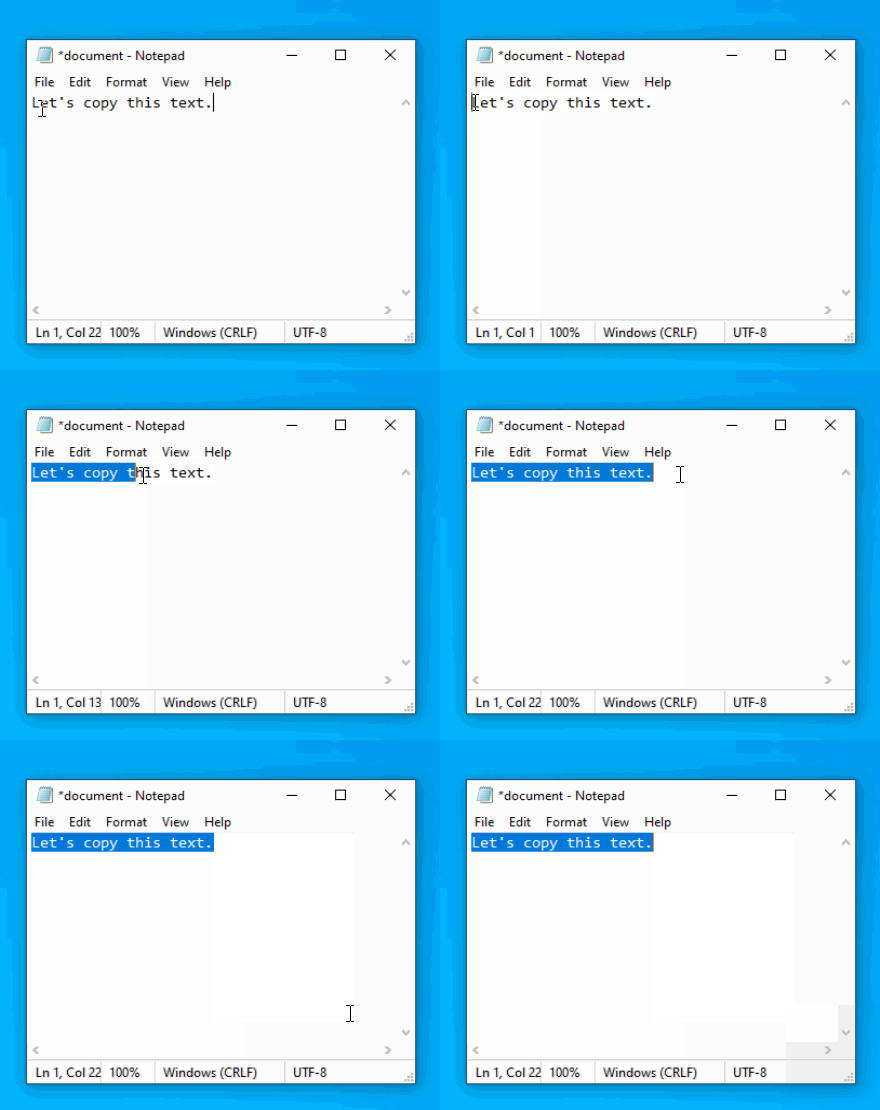
- For pictures: Move your cursor over the picture, right-click, and select 'Copy Picture' if available. This option directly copies the image.
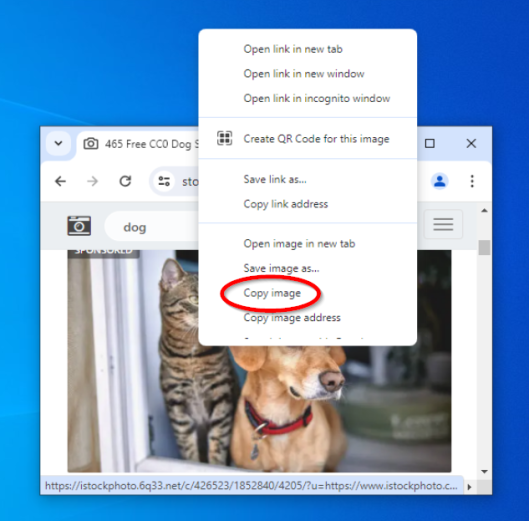
- For text: Click at the beginning of the text you want to copy, hold down the left mouse button, and drag to select the entire text. Release the button once everything you want to copy is highlighted.


Step 2: Copy the Selection
- Using the mouse:
- Right-click on the selected text or image. A context menu will appear. Click on 'Copy' from this menu.
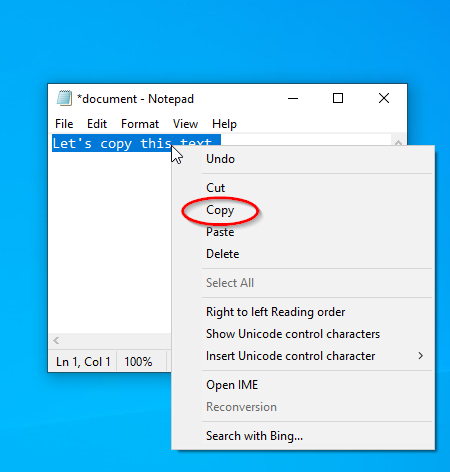
- Right-click on the selected text or image. A context menu will appear. Click on 'Copy' from this menu.
- Using the keyboard:
- Press
Ctrl + Con your keyboard to copy the selected text or image to your clipboard.
- Press

Step 3: Choose the Destination
- Navigate to where you want to paste:
- Open the document or field where you want to paste the copied content. Click in the spot where you want the content to appear.
Step 4: Paste the Content
- Using the mouse:
- Right-click in the destination area. A context menu will appear. Click on 'Paste' from this menu.
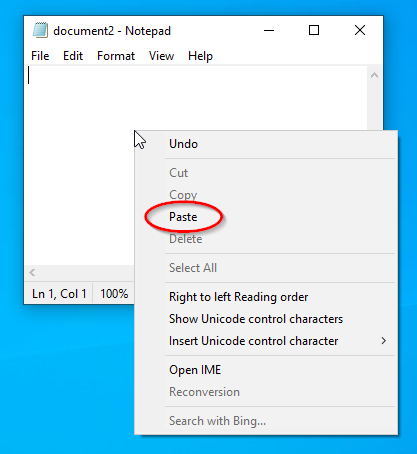
- Right-click in the destination area. A context menu will appear. Click on 'Paste' from this menu.
- Using the keyboard:
- Press
Ctrl + Von your keyboard. The text or picture will be inserted into the location you chose.
- Press

Where Can You Paste the Content?
Once you have copied text or a picture, you can paste it into various applications that are part of your daily workflow. Here are some common destinations:
- Email: Paste directly into the body of an email to share information quickly with colleagues or clients.
- Slack: Enhance communication by pasting images or text into messages or channels.
- Google Docs: Collaborate effectively by pasting content into shared documents where multiple users can view and edit simultaneously.
- Microsoft Word: Insert text or images into documents for reports, plans, or any other formal documentation.
Why Use Copy and Paste?
The ability to copy and paste text and images is essential for avoiding the tedious and error-prone process of retyping. It ensures data accuracy and saves a considerable amount of time, especially when handling detailed or large amounts of content. For images, right-clicking and selecting "Copy Picture" simplifies duplicating visuals without having to save and re-upload files, streamlining tasks such as document creation and presentation preparation.
If any information is incorrect or out-of-date, please notify the Technical Support team at workfromhome@imkgp.com.