Help Desk 2FA Login: Difference between revisions
Jump to navigation
Jump to search
No edit summary |
No edit summary |
||
| Line 1: | Line 1: | ||
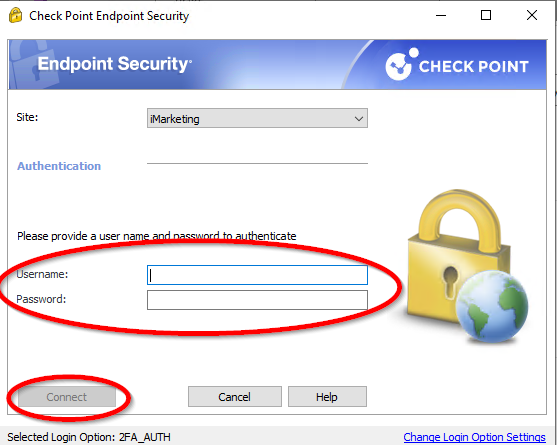
# In the Check Point application, enter the username (this will be provided by the company) and your username (this was set by you), then click '''Connect'''. | |||
# While logging in, keep an eye on your phone for the notification to pop up. | # In the Check Point application, enter the username (this will be provided by the company) and your username (this was set by you), then click '''Connect'''. If you aren't sure what this information is, reach out to Tech Support at [mailto:workfromhome@imkgp.com workfromhome@imkgp.com]. <br> <br>[[File:Help desk 2fa login check point.png]]<br> | ||
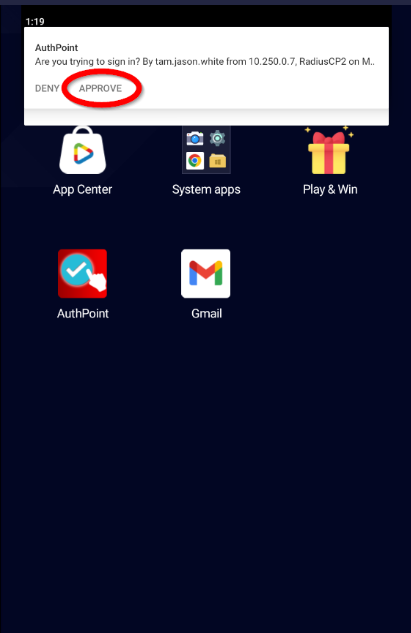
# While logging in, keep an eye on your phone for the notification to pop up. Once it does, click '''APPROVE''', and you should get logged in. <br> <br><span style="color: rgb(255, 0, 0); --darkreader-inline-color: #ff1a1a;" data-darkreader-inline-color="">NOTE: Only click APPROVE if you are currently trying to login. If this notification pops ups, and you are not trying to login, someone else is using your credentials. Notify IT immediately. </span><br> <br>[[File:Help desk 2fa login phone.png]] | |||
Latest revision as of 23:34, 5 July 2024
- In the Check Point application, enter the username (this will be provided by the company) and your username (this was set by you), then click Connect. If you aren't sure what this information is, reach out to Tech Support at workfromhome@imkgp.com.
- While logging in, keep an eye on your phone for the notification to pop up. Once it does, click APPROVE, and you should get logged in.
NOTE: Only click APPROVE if you are currently trying to login. If this notification pops ups, and you are not trying to login, someone else is using your credentials. Notify IT immediately.