Help Desk 2FA Move Token: Difference between revisions
Jump to navigation
Jump to search
No edit summary |
No edit summary |
||
| (One intermediate revision by the same user not shown) | |||
| Line 1: | Line 1: | ||
''These are the instructions to migrate your 2FA token to a new mobile device. This will delete the token on your current device, and send an activation email to the address we have on file. If you need your email address updated before moving the token, please email us at [mailto:workfromhome@imkgp.com workfromhome@imkgp.com].<br> <br> <br>'' | ''<br>These are the instructions to migrate your 2FA token to a new mobile device. This will delete the token on your current device, and send an activation email to the address we have on file. If you need your email address updated before moving the token, please email us at [mailto:workfromhome@imkgp.com workfromhome@imkgp.com].<br> <br> <br>'' | ||
# Open the '''WatchGuard AuthPoint''' app on your mobile device, and click the menu icon (the 3 dots circled in green) next to the token you want to move. <br> <br>[[File:Watchguard move token menu button.png]]<br> | # Open the '''WatchGuard AuthPoint''' app on your mobile device, and click the menu icon (the 3 dots circled in green) next to the token you want to move. <br> <br>[[File:Watchguard move token menu button.png]]<br> | ||
# Push the '''Migrate Token''' option on the menu.<br> <br> | # Push the '''Migrate Token''' option on the menu.<br> <br>[[File:Help desk 2fa move token menu.png]]<br> | ||
# Press the '''Yes''' button.<br> <br>[[File:Help desk 2fa move token yes button.png]]<br> | # Press the '''Yes''' button.<br> <br>[[File:Help desk 2fa move token yes button.png]]<br> | ||
# The token will be deleted and an email will be sent to setup the token on a new device. <br>[[File:Help desk 2fa move token done.png]] | # The token will be deleted and an email will be sent to setup the token on a new device. <br> <br>[[File:Help desk 2fa move token done.png]] <br> | ||
# [[Help Desk 2FA Setup|Click here for instructions on how to setup the token on your new device.]] | # [[Help Desk 2FA Setup|Click here for instructions on how to setup the token on your new device.]] ''If any information is incorrect or out-of-date, please notify the Technical Support team at [mailto:workfromhome@imkgp.com workfromhome@imkgp.com].'' | ||
Latest revision as of 20:41, 5 July 2024
These are the instructions to migrate your 2FA token to a new mobile device. This will delete the token on your current device, and send an activation email to the address we have on file. If you need your email address updated before moving the token, please email us at workfromhome@imkgp.com.
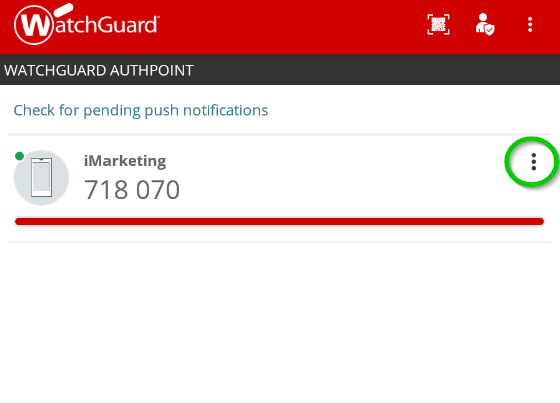
- Open the WatchGuard AuthPoint app on your mobile device, and click the menu icon (the 3 dots circled in green) next to the token you want to move.
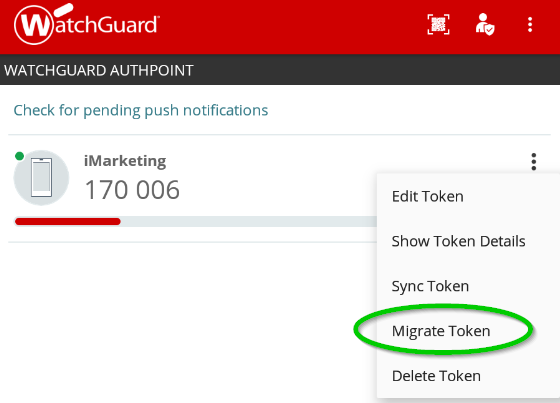
- Push the Migrate Token option on the menu.
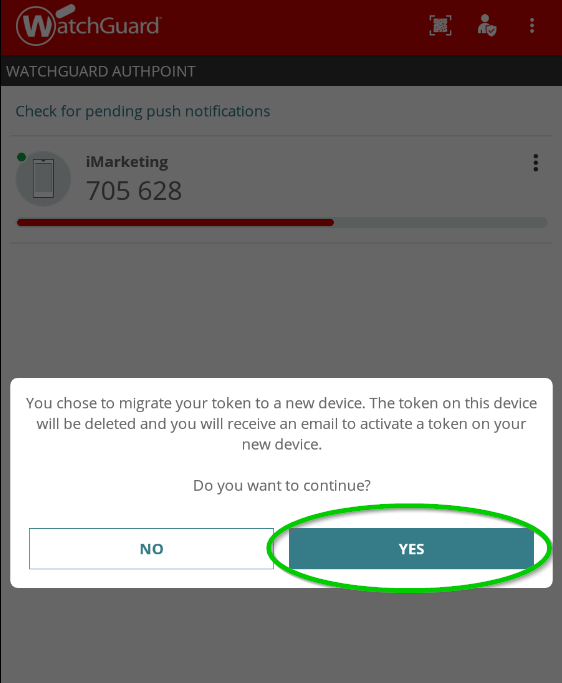
- Press the Yes button.
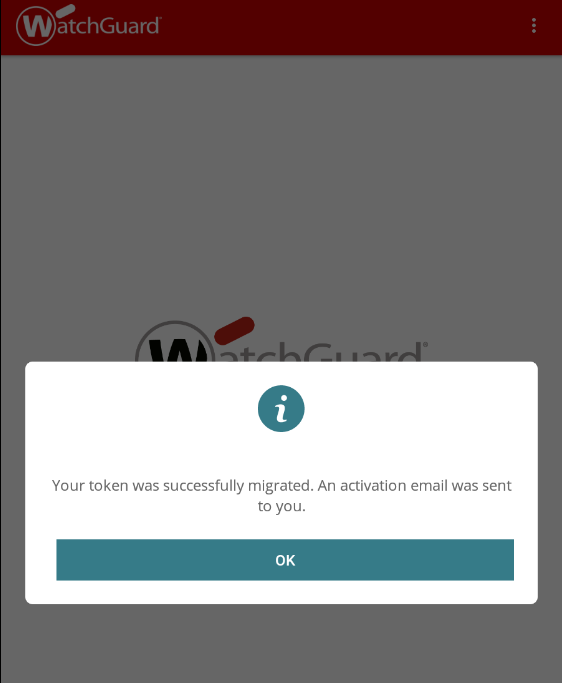
- The token will be deleted and an email will be sent to setup the token on a new device.
- Click here for instructions on how to setup the token on your new device. If any information is incorrect or out-of-date, please notify the Technical Support team at workfromhome@imkgp.com.


