Send Documents From Slack: Difference between revisions
No edit summary |
No edit summary |
||
| (15 intermediate revisions by the same user not shown) | |||
| Line 1: | Line 1: | ||
'''How to Send Documents Through Slack''' | |||
''' ''' | |||
* | |||
* | '''What is Slack?''' | ||
* | |||
* | Slack is a collaboration platform used extensively in workplaces to communicate, share files, and collaborate on projects. Sending documents through Slack is a straightforward process that enhances team collaboration. | ||
* | |||
* | | ||
* | |||
* | While Slack might look different for everyone in terms of the channels listed, direct message history, and contents of each channel, the arrangement of these sections remains consistent. The channel list, direct message list, and content of selected channels are always found in the same places, ensuring a uniform navigation experience. | ||
* | |||
* | <br>[[File:Slack layout.png|437x437px]]<br> | ||
* | |||
* | === Steps to Send Documents Through Slack === | ||
'''Step 1: Open Slack''' | |||
* '''Open the Slack tab in your browser.''' | |||
** Navigate to the Slack tab that is already open in your browser.<br> <br>[[File:Slack tab in chrome.png]]<br> | |||
'''Step 2: Choose the Channel or Direct Message''' | |||
* '''Select where you want to send the document.''' | |||
** Click on the channel or direct message where you want to send the document (in this instance, I will send a Direct Message to myself.) You can use the search bar at the top if you need to find a specific person or channel quickly.<br> <br>[[File:Slack dm.png]]<br> <br> | |||
'''Step 3: Attach the Document''' | |||
* '''Upload the file.''' | |||
** Below the message box at the bottom of your Slack window, you'll see a plus icon. Click on this icon to open the options for attachments. <br> <br>[[File:Slack plus button 2.png]]<br> | |||
** Select 'Upload a file' from the options that appear. This will open your computer's file explorer. <br> <br>[[File:Slack upload image.png|552x552px]]<br> | |||
** Navigate through your folders and select the document you want to send. Click 'Open' to attach it to your message. In this instance, I will pick the file called ''document'' in my Downloads folder.<br> <br>[[File:Slack upload file picker 2.png|664x664px]]<br> <br><br> | |||
'''Step 4: Send the Document''' | |||
* '''Share the document.''' | |||
** After the document is attached, it will appear as a thumbnail or a file name below the message box. You can add a message or simply press 'Enter' or click the green button to send the document.<br> <br>[[File:Slack upload button.png]]<br> <br><br> | |||
'''Step 5: Confirm the Upload''' | |||
* '''Ensure the document is sent.''' | |||
** After sending, make sure that the document appears in the conversation. You'll see it listed along with any message you might have typed. This confirms that the document has been successfully sent and is now accessible to others in the chat.<br> <br>[[File:Slack confirm upload.png|530x530px]]<br> <br><br> | |||
'''Why Send Documents Through Slack?''' | |||
Sending documents through Slack is an efficient way to ensure that all team members have easy access to necessary files. It supports a range of file types and allows for immediate, organized communication. Whether it's for providing project updates, sharing resources, or keeping everyone on the same page, Slack simplifies file distribution and enhances collaborative efforts. | |||
| |||
| |||
| |||
''If any information is incorrect or out-of-date, please notify the Technical Support team at [mailto:workfromhome@imkgp.com workfromhome@imkgp.com].'' | |||
Latest revision as of 00:33, 5 July 2024
How to Send Documents Through Slack
What is Slack?
Slack is a collaboration platform used extensively in workplaces to communicate, share files, and collaborate on projects. Sending documents through Slack is a straightforward process that enhances team collaboration.
While Slack might look different for everyone in terms of the channels listed, direct message history, and contents of each channel, the arrangement of these sections remains consistent. The channel list, direct message list, and content of selected channels are always found in the same places, ensuring a uniform navigation experience.

Steps to Send Documents Through Slack
Step 1: Open Slack
- Open the Slack tab in your browser.
- Navigate to the Slack tab that is already open in your browser.

- Navigate to the Slack tab that is already open in your browser.

Step 2: Choose the Channel or Direct Message
- Select where you want to send the document.
- Click on the channel or direct message where you want to send the document (in this instance, I will send a Direct Message to myself.) You can use the search bar at the top if you need to find a specific person or channel quickly.

- Click on the channel or direct message where you want to send the document (in this instance, I will send a Direct Message to myself.) You can use the search bar at the top if you need to find a specific person or channel quickly.

Step 3: Attach the Document
- Upload the file.
- Below the message box at the bottom of your Slack window, you'll see a plus icon. Click on this icon to open the options for attachments.

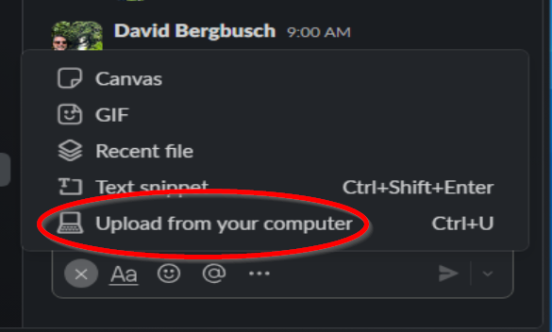
- Select 'Upload a file' from the options that appear. This will open your computer's file explorer.
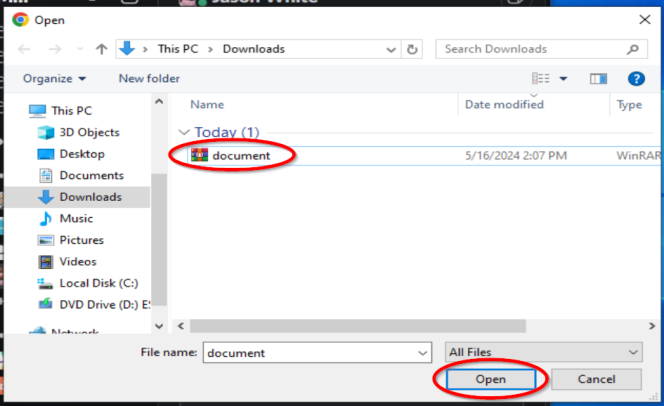
- Navigate through your folders and select the document you want to send. Click 'Open' to attach it to your message. In this instance, I will pick the file called document in my Downloads folder.
- Below the message box at the bottom of your Slack window, you'll see a plus icon. Click on this icon to open the options for attachments.


Step 4: Send the Document
- Share the document.
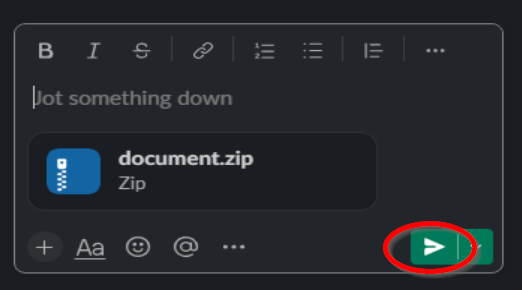
- After the document is attached, it will appear as a thumbnail or a file name below the message box. You can add a message or simply press 'Enter' or click the green button to send the document.
- After the document is attached, it will appear as a thumbnail or a file name below the message box. You can add a message or simply press 'Enter' or click the green button to send the document.

Step 5: Confirm the Upload
- Ensure the document is sent.
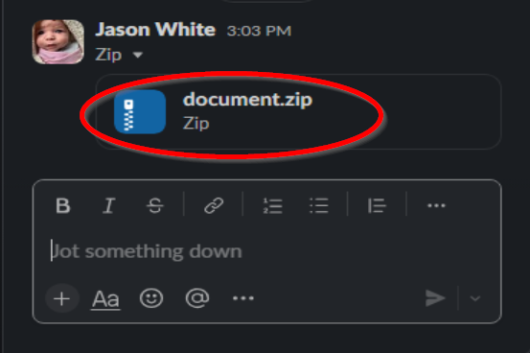
- After sending, make sure that the document appears in the conversation. You'll see it listed along with any message you might have typed. This confirms that the document has been successfully sent and is now accessible to others in the chat.
- After sending, make sure that the document appears in the conversation. You'll see it listed along with any message you might have typed. This confirms that the document has been successfully sent and is now accessible to others in the chat.

Why Send Documents Through Slack?
Sending documents through Slack is an efficient way to ensure that all team members have easy access to necessary files. It supports a range of file types and allows for immediate, organized communication. Whether it's for providing project updates, sharing resources, or keeping everyone on the same page, Slack simplifies file distribution and enhances collaborative efforts.
If any information is incorrect or out-of-date, please notify the Technical Support team at workfromhome@imkgp.com.