Download Documents From Slack: Difference between revisions
No edit summary |
No edit summary |
||
| (2 intermediate revisions by the same user not shown) | |||
| Line 8: | Line 8: | ||
| | ||
While Slack might look different for everyone in terms of the channels listed, direct message history, and contents of each channel, the arrangement of these sections remains consistent. The channel list, direct message list, and content of selected channels are always found in the same places, ensuring a uniform navigation experience. | |||
| |||
[[File:Slack layout.png|410x410px]] | |||
| |||
=== Steps to Download Documents from Slack === | === Steps to Download Documents from Slack === | ||
| Line 29: | Line 38: | ||
Downloading documents from Slack allows you to keep a local copy of important files for offline access or backup. Whether it’s for archiving purposes, further editing, or sharing outside of Slack, having a physical copy of a document ensures that you have access to your files whenever you need them, regardless of your online status. | Downloading documents from Slack allows you to keep a local copy of important files for offline access or backup. Whether it’s for archiving purposes, further editing, or sharing outside of Slack, having a physical copy of a document ensures that you have access to your files whenever you need them, regardless of your online status. | ||
| |||
| |||
| |||
''If any information is incorrect or out-of-date, please notify the Technical Support team at [mailto:workfromhome@imkgp.com workfromhome@imkgp.com].'' | |||
Latest revision as of 00:33, 5 July 2024
How to Download Documents from Slack
What is Slack?
Slack is a collaboration hub that connects you to the people and tools you work with every day. Documents, images, and other files can be easily shared and downloaded within Slack, making it an essential tool for workplace communication.
While Slack might look different for everyone in terms of the channels listed, direct message history, and contents of each channel, the arrangement of these sections remains consistent. The channel list, direct message list, and content of selected channels are always found in the same places, ensuring a uniform navigation experience.

Steps to Download Documents from Slack
Step 1: Open Slack
- Open the Slack tab in your browser.
- Simply click on the Slack tab that is already open in your browser. Look for the Slack icon on the tab, the text may not match the image.

- Simply click on the Slack tab that is already open in your browser. Look for the Slack icon on the tab, the text may not match the image.

Step 2: Locate the Document
- Find the document in your conversations.
- Navigate to the channel or direct message where the document was shared (in this instance, I will send a Direct Message to myself.) Scroll through the conversation if necessary to find the document you need. Here you can see the document in the red box. This is a preview of the file being sent, so it will always look different than the picture below.
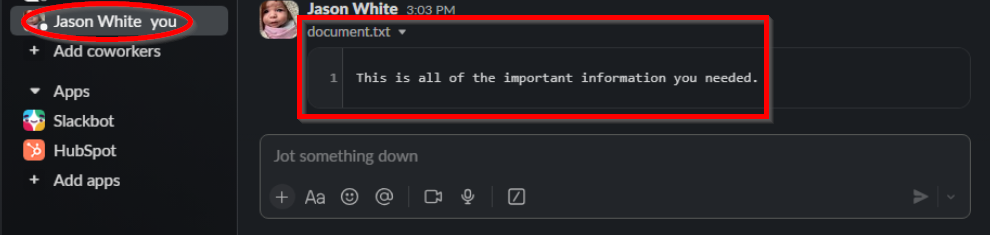
- Navigate to the channel or direct message where the document was shared (in this instance, I will send a Direct Message to myself.) Scroll through the conversation if necessary to find the document you need. Here you can see the document in the red box. This is a preview of the file being sent, so it will always look different than the picture below.

Step 3: Download the Document
- Download the file.
- Move your mouse over the document to reveal a toolbar. Look for an icon that resembles a cloud with a downward arrow—this is the download button. Click on this icon to start downloading the document to your computer.
- By default, Slack will save the document in your 'Downloads' folder unless you have set a different location in your browser or Slack settings.

- By default, Slack will save the document in your 'Downloads' folder unless you have set a different location in your browser or Slack settings.
- Move your mouse over the document to reveal a toolbar. Look for an icon that resembles a cloud with a downward arrow—this is the download button. Click on this icon to start downloading the document to your computer.

Step 4: Access the Downloaded Document
- Find the document on your computer.
- Open your 'Downloads' folder. Locate the downloaded document within this folder.
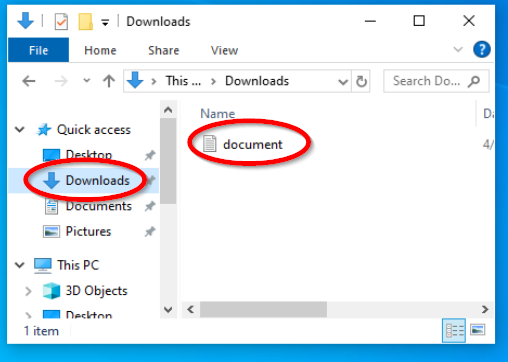
- Open your 'Downloads' folder. Locate the downloaded document within this folder.

Why Download Documents from Slack?
Downloading documents from Slack allows you to keep a local copy of important files for offline access or backup. Whether it’s for archiving purposes, further editing, or sharing outside of Slack, having a physical copy of a document ensures that you have access to your files whenever you need them, regardless of your online status.
If any information is incorrect or out-of-date, please notify the Technical Support team at workfromhome@imkgp.com.