Send Documents From Gmail: Difference between revisions
No edit summary |
No edit summary |
||
| (8 intermediate revisions by the same user not shown) | |||
| Line 10: | Line 10: | ||
=== Steps to Attach a File in Gmail === | === Steps to Attach a File in Gmail === | ||
'''Step 1: Open Gmail''' | '''Step 1: Open Gmail''' | ||
* '''Navigate to Gmail.''' | |||
** Open your Chrome browser. Click on the address bar at the top of the page. Type www.gmail.com and press the 'Enter' key on your keyboard. This will take you to the Gmail login page. ''NOTE: Most users are logged into Chrome browser, so the login will be skipped. If the user is already logged in, skip ahead to step 3.''<br> <br>[[File:Image.png]]<br> | |||
'''Step 2: Log into Gmail''' | |||
* '''Access your Gmail account.''' | * '''Access your Gmail account.''' | ||
** | ** If you are not already logged in, you will see fields to enter your email and password. Type your email address in the first field and click 'Next'. Then, type your password in the second field and click 'Next' again to access your inbox.<br> <br>[[File:Gmail email.png|408x408px]][[File:Gmail password.png|408x408px]]<br> <br> | ||
'''Step | '''Step 3: Compose a New Email''' | ||
* '''Start a new email.''' | * '''Start a new email.''' | ||
** Click on the ‘Compose’ button in the upper-left corner of the Gmail interface. This will open a new message window where you can add recipients, a subject, and the body of your email.<br> <br> | ** Click on the ‘Compose’ button in the upper-left corner of the Gmail interface. This will open a new message window where you can add recipients, a subject, and the body of your email.<br> <br>[[File:Gmail compose.png|388x388px]]<br> | ||
'''Step | '''Step 4: Initiate the Attachment Process''' | ||
* '''Click on the attachment icon.''' | * '''Click on the attachment icon.''' | ||
** Find and click the paperclip icon at the bottom of the compose window. This is the attachment icon, which allows you to add files to your email.<br> <br> | ** Find and click the paperclip icon at the bottom of the compose window. This is the attachment icon, which allows you to add files to your email.<br> <br>[[File:Gmail paperclip.png|573x573px]]<br> <br> | ||
'''Step | '''Step 5: Select the File to Attach''' | ||
* '''Choose your file.''' | * '''Choose your file.''' | ||
** After clicking the attachment icon, a file dialog will appear, allowing you to navigate through your computer’s files. Locate the file you wish to attach and select it by clicking on it once, then click ‘Open’ to attach it to your email.<br> | ** After clicking the attachment icon, a file dialog will appear, allowing you to navigate through your computer’s files. Locate the file you wish to attach and select it by clicking on it once, then click ‘Open’ to attach it to your email. In this instance, I will pick the file called ''document'' in my Downloads folder.<br> [[File:Gmail file picker.png|581x581px]]<br> <br> | ||
'''Step | '''Step 6: Wait for the Upload''' | ||
* '''Ensure the file is uploaded.''' | * '''Ensure the file is uploaded.''' | ||
** Wait for the file to upload completely. You can see the progress at the bottom of the compose window. Once the upload is complete, the file name will appear at the bottom of the compose window, indicating that it is attached.<br> <br> | ** Wait for the file to upload completely. You can see the progress at the bottom of the compose window. Once the upload is complete, the file name will appear at the bottom of the compose window, indicating that it is attached.<br> <br>[[File:Gmail attachment confirm.png|593x593px]]<br> <br> | ||
'''Step | '''Step 7: Send the Email''' | ||
* '''Complete and send your email.''' | * '''Complete and send your email.''' | ||
** After attaching the file, enter the recipient’s email address, add a subject, and type your message. Once you’re ready, click the ‘Send’ button to send your email with the attachment.<br> <br> | ** After attaching the file, enter the recipient’s email address, add a subject, and type your message. Once you’re ready, click the ‘Send’ button to send your email with the attachment.<br> <br>[[File:Gmail send.png|599x599px]]<br> <br> | ||
'''Why Attach Files in Gmail?''' | '''Why Attach Files in Gmail?''' | ||
Attaching files to an email is a fundamental aspect of modern communication, allowing you to share documents, photos, and other important files with colleagues, friends, and family. Whether it's for work collaboration, sharing family photos, or sending important documents, attachments ensure that you can communicate more effectively and share more than just text. | Attaching files to an email is a fundamental aspect of modern communication, allowing you to share documents, photos, and other important files with colleagues, friends, and family. Whether it's for work collaboration, sharing family photos, or sending important documents, attachments ensure that you can communicate more effectively and share more than just text. | ||
Latest revision as of 23:00, 21 May 2024
How to Attach a File in Gmail
What is Gmail?
Gmail is a widely-used email service provided by Google that allows users to send and receive emails, manage contacts, and perform various other communication tasks efficiently.
Steps to Attach a File in Gmail
Step 1: Open Gmail
- Navigate to Gmail.
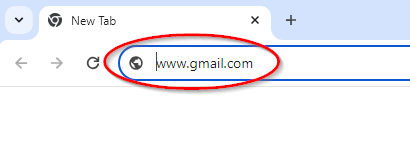
- Open your Chrome browser. Click on the address bar at the top of the page. Type www.gmail.com and press the 'Enter' key on your keyboard. This will take you to the Gmail login page. NOTE: Most users are logged into Chrome browser, so the login will be skipped. If the user is already logged in, skip ahead to step 3.
- Open your Chrome browser. Click on the address bar at the top of the page. Type www.gmail.com and press the 'Enter' key on your keyboard. This will take you to the Gmail login page. NOTE: Most users are logged into Chrome browser, so the login will be skipped. If the user is already logged in, skip ahead to step 3.

Step 2: Log into Gmail
- Access your Gmail account.
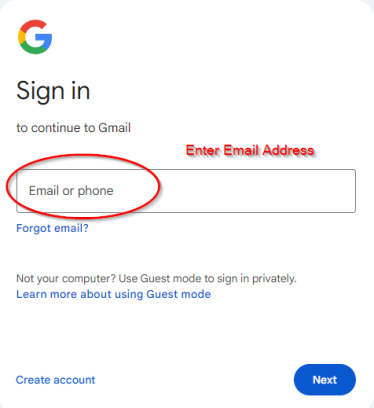
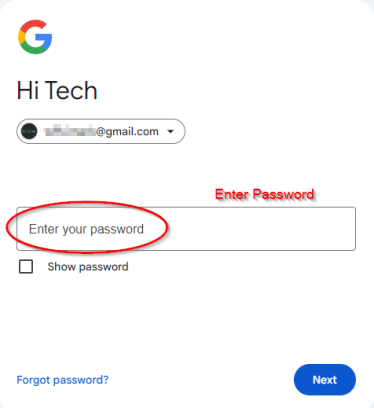
- If you are not already logged in, you will see fields to enter your email and password. Type your email address in the first field and click 'Next'. Then, type your password in the second field and click 'Next' again to access your inbox.
- If you are not already logged in, you will see fields to enter your email and password. Type your email address in the first field and click 'Next'. Then, type your password in the second field and click 'Next' again to access your inbox.


Step 3: Compose a New Email
- Start a new email.
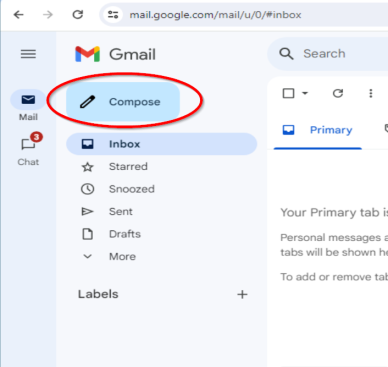
- Click on the ‘Compose’ button in the upper-left corner of the Gmail interface. This will open a new message window where you can add recipients, a subject, and the body of your email.
- Click on the ‘Compose’ button in the upper-left corner of the Gmail interface. This will open a new message window where you can add recipients, a subject, and the body of your email.

Step 4: Initiate the Attachment Process
- Click on the attachment icon.
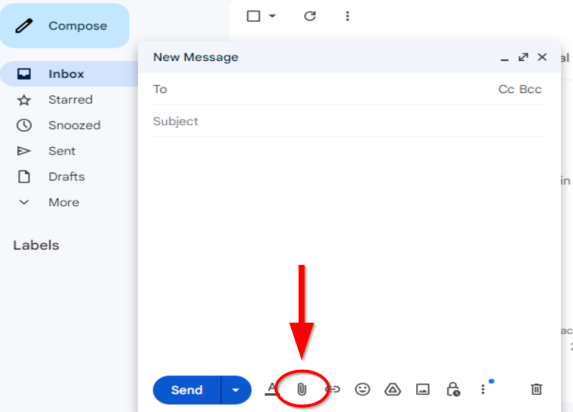
- Find and click the paperclip icon at the bottom of the compose window. This is the attachment icon, which allows you to add files to your email.
- Find and click the paperclip icon at the bottom of the compose window. This is the attachment icon, which allows you to add files to your email.

Step 5: Select the File to Attach
- Choose your file.
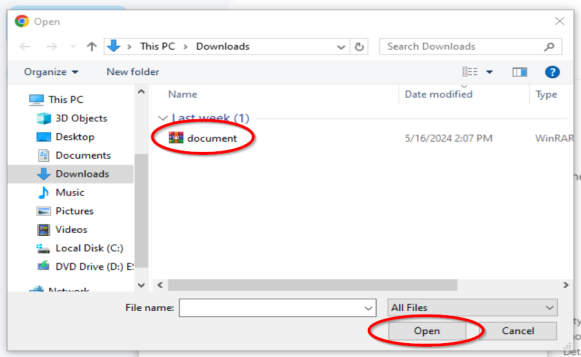
- After clicking the attachment icon, a file dialog will appear, allowing you to navigate through your computer’s files. Locate the file you wish to attach and select it by clicking on it once, then click ‘Open’ to attach it to your email. In this instance, I will pick the file called document in my Downloads folder.
- After clicking the attachment icon, a file dialog will appear, allowing you to navigate through your computer’s files. Locate the file you wish to attach and select it by clicking on it once, then click ‘Open’ to attach it to your email. In this instance, I will pick the file called document in my Downloads folder.

Step 6: Wait for the Upload
- Ensure the file is uploaded.
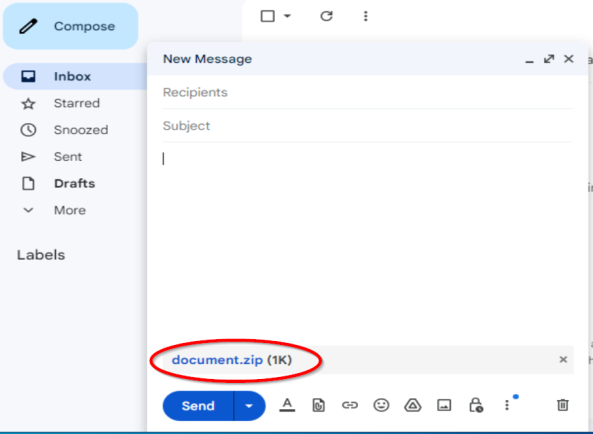
- Wait for the file to upload completely. You can see the progress at the bottom of the compose window. Once the upload is complete, the file name will appear at the bottom of the compose window, indicating that it is attached.
- Wait for the file to upload completely. You can see the progress at the bottom of the compose window. Once the upload is complete, the file name will appear at the bottom of the compose window, indicating that it is attached.

Step 7: Send the Email
- Complete and send your email.
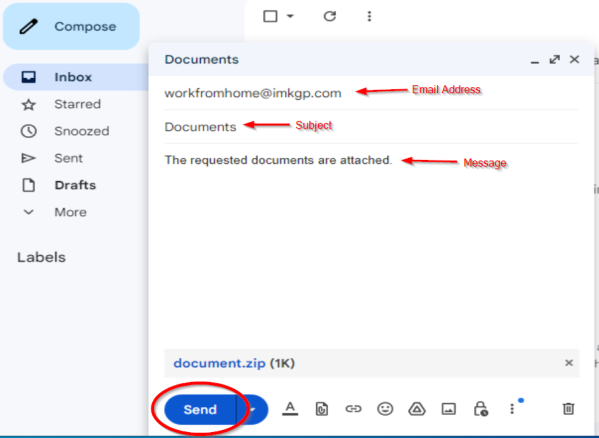
- After attaching the file, enter the recipient’s email address, add a subject, and type your message. Once you’re ready, click the ‘Send’ button to send your email with the attachment.
- After attaching the file, enter the recipient’s email address, add a subject, and type your message. Once you’re ready, click the ‘Send’ button to send your email with the attachment.

Why Attach Files in Gmail?
Attaching files to an email is a fundamental aspect of modern communication, allowing you to share documents, photos, and other important files with colleagues, friends, and family. Whether it's for work collaboration, sharing family photos, or sending important documents, attachments ensure that you can communicate more effectively and share more than just text.